Posts

More from Google Classroom

It's been a while since I posted, especially about Google Classroom updates. The team at Google Classroom has been busy and super responsive to feedback from its user community. Since the last time I wrote about it, they've made a bunch of changes. I just wanted to highlight the ones that I think make the most impact on teachers in my district, I've created the list below: Mobile app updates: Add/Edit assignments - This is big for users who want to be able to manage their Classroom pages from anywhere. Grade student work - This is also great for teachers who like to work via mobile devices or in our 1:1 iPad classrooms. Take a photo to post to the stream or on assignments - This also great for our mobile teachers who want to share products from other students, class notes, or anything else out to the class right from their mobile device. Add other teachers as co-teachers. Not only has the Classroom team worked on making it more mobile friendly, but they've d...

Google Forms Walk-through

Image
I prepared this Forms walk-through as a source for teachers in my district to learn the basic use of Google Forms. Please feel free to use and share it as you need.

Google Classroom Updates for Teachers

Image
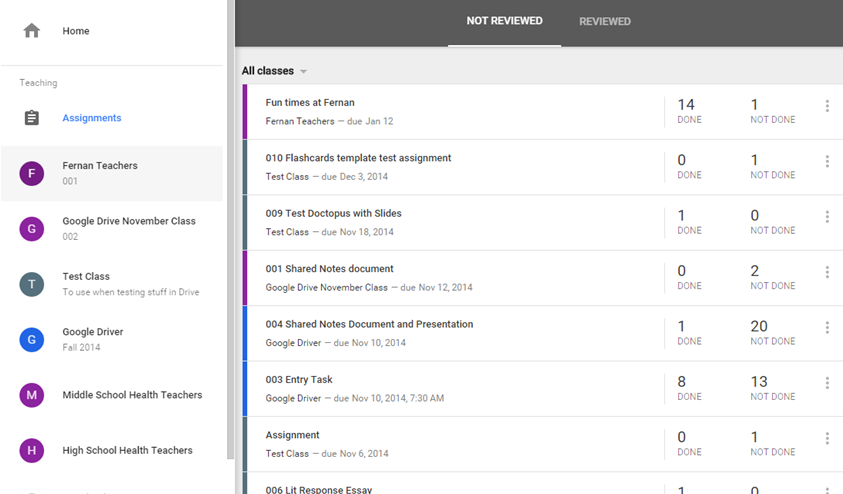
Well, it seems as though the folks behind Google Classroom have been listening and making improvements as we get into the start of the second half of the school year. Wednesday of this week, Google announced the newest updates to Classroom , which include a new iOS and Android app. Today, though, I'm going to specifically mention the things that they've done to boost the teacher experience in Classroom. Assignments for Teachers: In the student version of Classroom, there is an option for students to view all of the pending assignments that they have for all of their classes. For the teacher, however, we used to have to go to each class to see what assignments are pending and how many students have completed them. Now, we have our own Assignments section (actually two of them...one for our teaching classes and one for the classes that we are enrolled in as students). Here, we get to see all the pending assignments for all of our classes and the number of students who have...

271 Tech Speak Episode 1

Image
Right before Christmas break, I interviewed 4th grade teacher, Kelli Ogle, about how she is using Google Classroom with her students. This is the first episode in a series that I have planned for showcasing technology use within my district. My hope is to have other teachers in the district see what is happening around them, right in their own backyard, and work to enhance what they are doing in their classrooms. There is a video version of the interview on our department's YouTube channel , as well as the audio only version posted to my iTech website . The next episode is going to feature a middle school Language Arts teacher and we'll talk about using Doctopus + Goobric + Classroom to give students feedback via a rubric.

New Developments for iOS + Google Apps users!

Sharing a Folder from Google Drive through Google Classroom

Image
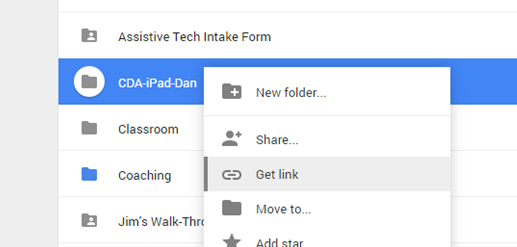
Ever wanted to share an entire folder to your class on Google Classroom but can't figure out how to do it? Well, here is one way to make it work. *Remember to check the sharing settings for the folder before you post it, so that you've given your students the right level of access that you wish to give them. Log in to Google Classroom and Google Drive in separate tabs or windows. In Google Drive, right click on your folder and choose the “Get Link” option. Copy the link to that folder (make sure that you’ve allowed that folder to be shared with “anyone with the link”) Move to Google Classroom and open the class in which you want to post the folder Create an Announcement, give it a title, click the link option and paste the link copied from Google Drive. Click the “Add” button, to save the link to that announcement, click on all the classes that you want it to be available to, from the drop down menu, and then click “Post.” Students can now cl...

View/Manage Versions of Non-Google Files in Google Drive

Image
One of the many aspects of Google Drive that I enjoy is that they keep track of the history of all of my revisions on Google files. However, I stumbled upon a way (while watching Google's The Apps Show ) that I can also keep track of my non-Google file revisions without having multiple copies of that document in my Drive. I like this because it helps with people who may not want to switch over to Google's document editing and still want to easily manage their drafts of Office documents or PDFs. Here's how to make this happen: Go to your Google Drive  Select the file that is not a Google file Click the menu button (also known as the actions button) or right click Choose "Manage Versions" Here you can see a list of all the versions of that document as well as Upload new versions Delete old versions Download a version (doesn't have to be the current one) Permanently save an older version (Google drive only keeps older versions for 30 days or the ...