Posts

Accessibility Considerations

Image
As more and more content is added to the web on a daily, or even minutely, basis, one of the most important aspects of design is accessibility. Any web designer worth their grain of salt should be able to discuss this, but many people who add content to the web aren’t professional web designers and don’t even know where to begin. Plus, now, more than ever, many school districts are being hit with complaints, notices of non-compliance, and in some cases lawsuits over not having accessible design or content on their pages. When designing content on a page, we often rely on what we can see to make things look readable and pretty. However, just adding bold or different size fonts doesn’t help users who rely on screen reader software or other add-ons to access information. Use these ideas to add more functionality to your documents and web page design to make sure everyone can access the important information you have posted: Header levels/Styles Using header levels and header forma...

Private Comments in Google Classroom

Image
One of my most favorite ways to give feedback to students is using the Private Comments feature in Google Classroom. Much of my love for them has come from what I've learned from Alice Keeler, both on her blog and from her session at our Tech Kickoff this past August. I like this so much because it allows for personal, instant, and constant feedback to students on an individual level from anywhere, anytime. I know many teachers in my district don't like the fact that they are getting notifications from students at all times of the day, but I think it's great to see that my students are interested in their work for me when they have the time to do it. Plus, it gives me a great way to talk to students about time management, commitments, and prioritizing the things in your life (even if it ends up that my class works isn't the priority, it still opens up that window!). One quick note: I've found that many people don't see the difference between the Private Com...

Using Slides "Right"

Image
We all know that we shouldn't put a lot of text on slideshow slides and the last thing we want to do is watch someone read their slides to us during a lesson or presentation. However, many people don't know just how flexible Google Slides are and how to "hack" the use of them to make presenting information more pleasing to an audience. Recently, I went to the IETA conference in Boise, ID, the annual conference for the Idaho Educational Technology Association (IETA). While there, I attended a session by the illustrious Sarah Windisch ( @slwindisch on twitter) about using Google Slides. While I have always tried to keep my slides more focused on images than text, I learned some new hacks from her and other presenters at the conference. Here are my top 3 additions to slide decks that we should all try at least once: Use topical images that draw interest Your slideshow should support what you are talking about, not be the centerpiece. Use images that relate t...

IETA Tech Conference-New Tech Knowledge for a "Regular Teacher"

Image
Trying Something New   In the beginning of February I had the privilege of attending the Idaho Education Technology Association   (IETA)   Conference in Boise, Idaho.   I'll say that I certainly felt out of my element---an elementary art teacher at a tech conference?   I was sure the woman behind the counter handing out registration information could see the neon signs above my head flashing, "Tech Newbie!", "Here for the Freebies!", or "Just an Art Teacher!"   Although sometimes my tech knowledge is admittedly "low tech", I was so excited for the opportunity to take risks to grow as a professional by trying new things out of my comfort zone.     My background is in a general K-8 setting so I knew that I wanted to focus on learning how I could gain new knowledge about instructional technology best-practices to bring back to share with the teachers at my school.  If I learned things I could actually use in my art room-now that was an ...

New Ways to Video in G Slides!

Image
Up until recently, YouTube was the only option when inserting video files into a Google Slides presentation. This caused many teachers headaches due to wanting to use their own videos in slide show, but not wanting to go through the process of uploading those to YouTube. Now, Google has made it possible to pull videos right from your Google Drive into your slide show! There are four new options for using video, that give it more customization than ever before. Embed Drive Videos in Slides Just like before, choose Insert  > Video > and select the Google Drive option. Just watch out for adjusting your sharing permissions, like any other file in Google Drive, you need to set it so that anyone viewing the slides would have access, if necessary.  Start/Stop Times If you only want to share part of the video, the option to choose start and stop times is available when you click on the options menu for any inserted video file.  Auto-Play Videos ...

Google Classroom Updates

Image
This is a bit late and will be brief, but in mid-January, Google Classroom made some updates. See their blog post for details. Highlights: Differentiated Assignments in Google Classroom New Notifications Late work turned in Re-submissions on student work These work with the other notification already available, and as before, it's an all or nothing option for users.  Check out their blog post for more information. 

Organizing Your Bookmarks Bar

Image
Is your bookmark bar getting so full that you have to always click into the overflow to see the pages you need? One day, I found myself searching far and wide in my bookmarks for a page that I know I had saved. It seemed ridiculous to me that I was having such a hard time finding a page that I had saved to get back to easily. That's why we bookmark pages, right?  To get to them easily?  Mine weren't. So I had to make a change. What I found has changed the way that I get to my most used pages. Using icons for your most often visited pages You can change that so that each bookmarked page is only a small icon without the words!! Follow these quick steps to change your chrome life forever Go to the page you want to bookmark Click the Star icon in the omni bar to bookmark the page Right click the bookmark in the bar   Delete the title/name in the box and click save Voila! You can now have almost four times as many pages accessible to you...

Leverage Data Validation in Google Forms

Image
Although it sounds very dry, data validation in Google Forms is actually a great help to anyone wanting to collect information or give assessments. Plus, it's only a couple of clicks away from making your forms work better for you and your target audience. What is data validation? To begin, we need to know what we are talking about. Data validation is basically a way for the person who is creating the form to "force" those that are filling it out to follow their directions, or they can't submit their answers. That's right! Forms won't allow them to submit until those criteria have been met. This creates predictable answers from your students so that using the information in the spreadsheet is simplified (numbers where you need numbers, text that is the correct length, the right number of answers in a specific question, etc.). How to make it happen: To begin, create a from in Google Forms and create a question in that form (data validation works in sho...

Assign Action Items for Students

Image
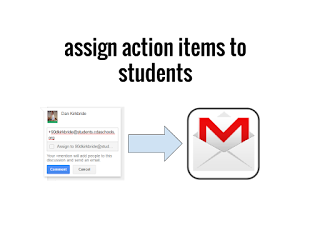
Recently, G Suite has updated some features that are very helpful to lots of people, not just educators. One of the features that I found to be very exciting is the ability to assign action items from within Google Docs, Sheets and Slides apps, even via the mobile versions! It even sends that person an email letting them know that they've been assigned an action item and adds a new icon on that document in Google Drive to show that there are assigned action items that need to be addressed.  At first, I was thinking of how this might play out in meeting agendas that I create and/or contribute to, but then I got to thinking about how teachers could leverage this powerful ability with students. Feedback to Students One way this could work for teachers is to start using it as you comment  on student work in Google Drive or Classroom. Once you have the student's document open, instead of just making a comment, you can assign a specific task that you want them to work on ...

Podcasts for Educators

Image
As a teacher, one of the things that I looked forward to the most was the quiet after school got out or during my prep period. However, for me, the silence was sometimes too deafening. Even music, at times, would be too much. I had to find something that would help me relax and reflect on the day or start to think about what was coming up for me and my students. Even now, I need something other than music to help me reflect on what I've just done or have coming up soon. So, I turned to podcasts to help me out. Podcasts have been around a long time, but I don't consider them to be a dying technology. In fact, I feel like they are on the rise because they are portable and many include a video portion to them, for those that want to watch instead of just listen. When I first started listening to them, I was looking for distraction from work and something to help me unwind. So, I started listening to some that were unrelated to education and teaching. However, I soon realized...

Google Drive: Share Google Files as Templates or View Only

Image
I've learned a lot lately about what can and can't be done with a Google doc to manage what happens when I share it with other people. In most instances, I use the built in sharing settings when I want to collaborate or convert my docs to PDF and share that so that my original can't be changed by anyone. Recently, I found that this was not the only way to do this and really it probably wasn't the most convenient way to share my documents. I've tried publishing my Google docs, but have found mixed success with the formatting. It seems that publishing works best with Google Slides, but other file types are not as friendly. To get around these hurdles, adjusting the URL can be a really useful way to  make your work or your students' work available. Required Settings Be sure to set either the global sharing settings or the individual sharing settings to the desired access level before proceeding. To do this on any document type:  Click on the blue Shar...

Google Classroom Hack: Share Student Papers for Class Comments

Image
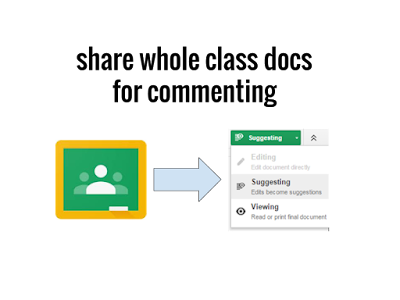
I've often been asked about an easy way to share out documents that students have worked on in Google Classroom to a whole class for peer reviews, product showcases, virtual gallery walks, etc. without having students share directly with each other or the teacher having to manually share them out student by student. So, here's a way to do this en masse for an entire class worth of documents/files. Start with an assignment that students have already completed in Google Classroom. It won't matter if they've turned them in or not (or if you've returned them or not). Create a new assignment that will share out all of the documents to the entire class. Select all of the documents at one time from the Google Drive attachment icon by holding down the Ctrl button (Command on a Mac) while you select each document to share. Be sure to give specific instructions on what  the students are to do with each other's work once it is shared out. It should be clear how...

Google Chrome - Using the Profile Menu

Image
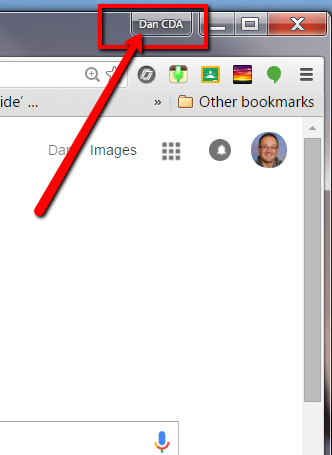
So, It's been a long time since my last post. I had a busy summer and the start of this school year has been the busiest that I can remember, which makes things go quickly. But in the spirit of the split lives that teachers live, here is a quick guide on using Chrome profiles to manage the important separation that teachers work to maintain between home and school. Why use Chrome Profiles? Chrome allows a user to create separate browser profiles for each google account. This allows users to keep work, school, and/or personal accounts all separate, but still use them at the same time. They will operate independently with their own settings, bookmarks, extensions and more.  In other words, there is no need to switch between accounts anymore – all of them can be open at the same time. *In addition, Add-Ons in Google Drive work better when profiles are kept separate (like Goobric). Set Up Profiles: Sign in, or see who is signed into Chrome: When Google Chrome is first o...

More from Google Classroom

It's been a while since I posted, especially about Google Classroom updates. The team at Google Classroom has been busy and super responsive to feedback from its user community. Since the last time I wrote about it, they've made a bunch of changes. I just wanted to highlight the ones that I think make the most impact on teachers in my district, I've created the list below: Mobile app updates: Add/Edit assignments - This is big for users who want to be able to manage their Classroom pages from anywhere. Grade student work - This is also great for teachers who like to work via mobile devices or in our 1:1 iPad classrooms. Take a photo to post to the stream or on assignments - This also great for our mobile teachers who want to share products from other students, class notes, or anything else out to the class right from their mobile device. Add other teachers as co-teachers. Not only has the Classroom team worked on making it more mobile friendly, but they've d...

Google Forms Walk-through

Image
I prepared this Forms walk-through as a source for teachers in my district to learn the basic use of Google Forms. Please feel free to use and share it as you need.

Google Classroom Updates for Teachers

Image
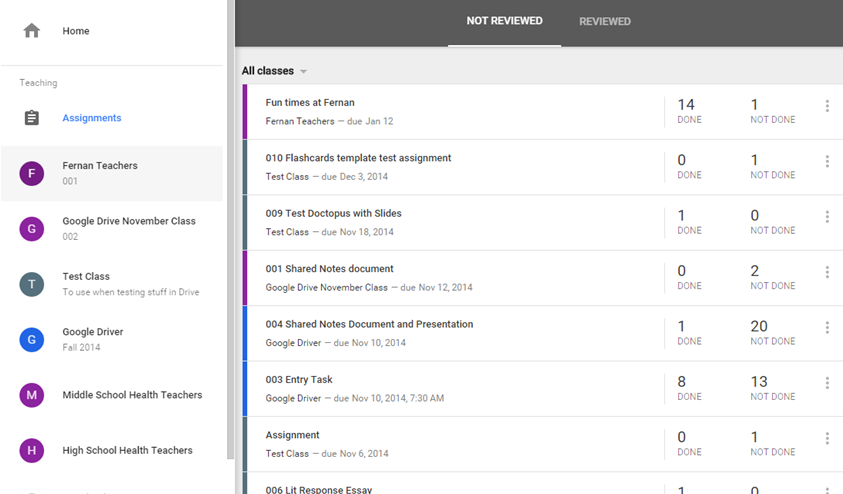
Well, it seems as though the folks behind Google Classroom have been listening and making improvements as we get into the start of the second half of the school year. Wednesday of this week, Google announced the newest updates to Classroom , which include a new iOS and Android app. Today, though, I'm going to specifically mention the things that they've done to boost the teacher experience in Classroom. Assignments for Teachers: In the student version of Classroom, there is an option for students to view all of the pending assignments that they have for all of their classes. For the teacher, however, we used to have to go to each class to see what assignments are pending and how many students have completed them. Now, we have our own Assignments section (actually two of them...one for our teaching classes and one for the classes that we are enrolled in as students). Here, we get to see all the pending assignments for all of our classes and the number of students who have...

271 Tech Speak Episode 1

Image
Right before Christmas break, I interviewed 4th grade teacher, Kelli Ogle, about how she is using Google Classroom with her students. This is the first episode in a series that I have planned for showcasing technology use within my district. My hope is to have other teachers in the district see what is happening around them, right in their own backyard, and work to enhance what they are doing in their classrooms. There is a video version of the interview on our department's YouTube channel , as well as the audio only version posted to my iTech website . The next episode is going to feature a middle school Language Arts teacher and we'll talk about using Doctopus + Goobric + Classroom to give students feedback via a rubric.

New Developments for iOS + Google Apps users!

Sharing a Folder from Google Drive through Google Classroom

Image
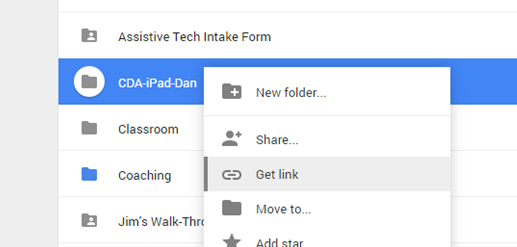
Ever wanted to share an entire folder to your class on Google Classroom but can't figure out how to do it? Well, here is one way to make it work. *Remember to check the sharing settings for the folder before you post it, so that you've given your students the right level of access that you wish to give them. Log in to Google Classroom and Google Drive in separate tabs or windows. In Google Drive, right click on your folder and choose the “Get Link” option. Copy the link to that folder (make sure that you’ve allowed that folder to be shared with “anyone with the link”) Move to Google Classroom and open the class in which you want to post the folder Create an Announcement, give it a title, click the link option and paste the link copied from Google Drive. Click the “Add” button, to save the link to that announcement, click on all the classes that you want it to be available to, from the drop down menu, and then click “Post.” Students can now cl...